Setting up Python
Get your computer ready to work with Python and your collection data
This page walks you through everything you need to work with our software from Python. You will install an editor, Python itself, the .NET platform our software runs on and the Double Dig IT Python SDK. Finally, you will run a short test script to check that everything works.
Allow about half an hour. Using a laptop managed by your organisation? Step 3 requires administrator rights, so you may want to ask your IT department for help. Stuck somewhere? The steps include a Not working? section that explains what to do.
This guide is for Windows. Using a Mac? See the steps for macOS.
Install Visual Studio Code
Visual Studio Code (VS Code) is a free editor from Microsoft for writing, running and debugging Python scripts. It is lightweight and works well with both Python and .NET.
- Download VS Code for Windows from code.visualstudio.com/download.
- Open the downloaded file and follow the installer. The default settings are fine.
- Start VS Code and open Extensions from the bar on the left (or press Ctrl+Shift+X).
- Search for Python and install the Python extension by Microsoft.
Opening a terminal
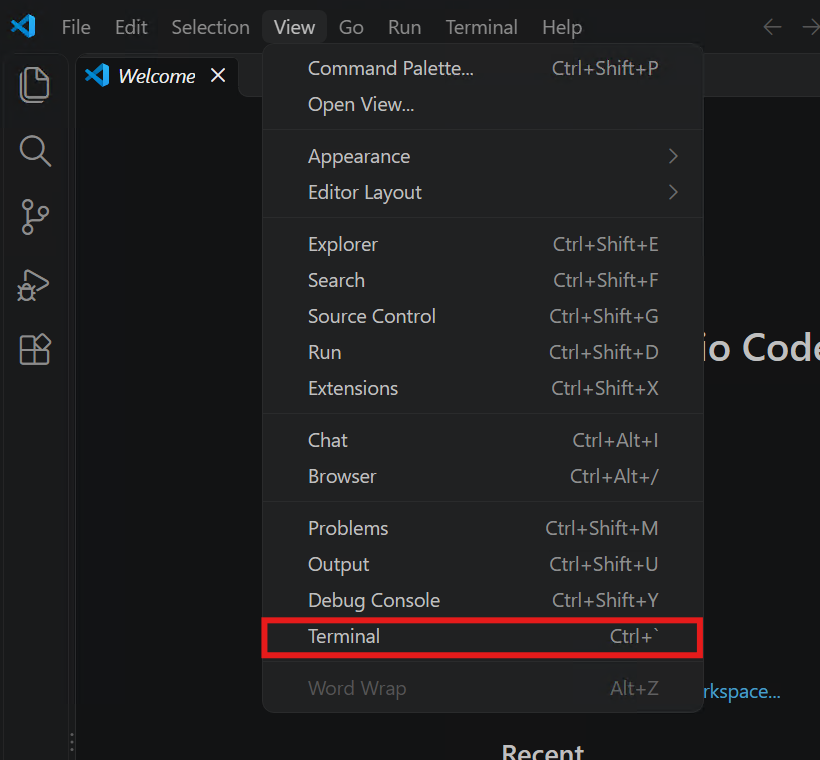
In the next steps you will type a few commands in a terminal. In VS Code, open one from the View > Terminal menu, or press Ctrl+`. A line where you can type commands then appears at the bottom of the window.
Every code block on this page has a button to copy its contents. Paste the command into the terminal with Ctrl+V and press Enter.
Install Python
Python is the programming language itself. On Windows, Python is now installed with the Python install manager from the official Python website.
- Go to python.org/downloads and click Download Python install manager.
- Open the downloaded file and click Install Python.
- Quit VS Code completely (every window) and start it again. VS Code only picks up newly installed programs after a restart.
- Install the latest version of Python with the first command for this step. If you are asked whether a directory may be added to your PATH: answer yes (y).
- Then check that Python works by asking for its version number.
Already have Python installed? Just check the version number. Version 3.11 or newer is fine.
py install defaultpython --versionPython 3.15.0A higher version number is fine too.
Not working?
- The downloaded file won't open
-
On some laptops managed by organisations, Windows cannot open this type of
installer (MSIX). Use the MSI package instead: go to
python.org/downloads/windows
and, under Python install manager, click Download MSI package. This package has
no installer window of its own and may ask for administrator rights. Wait a moment after opening it,
quit VS Code completely, start it again and continue with
py install default. pyorpythonis not recognised-
Close every VS Code window and start VS Code again. VS Code only picks up newly installed programs
after a restart. Still not working? Go to
Start > Settings > Apps > Advanced app settings > App execution aliases and
check that Python install manager and Python (default) are switched on. Does
pywork butpythondoesn't? Then you can usepyinstead ofpythoneverywhere on this page. - Message
… is unavailable because this is the legacy py.exe command -
An old Python Launcher from an earlier Python installation is still on your computer, and it
takes priority over the install manager. The command below shows which
pyWindows uses. Does it show a path containing\Python\Launcher\orC:\Windows\py.exe? Then, as the message itself suggests, remove only Python Launcher via Start > Settings > Apps > Installed apps. Python versions already on your computer stay where they are. Restart VS Code afterwards.Terminal: which py is used? where.exe py
Install the .NET 10 Runtime
Our software is built on .NET, Microsoft's software platform. To use it from Python, your computer needs the .NET 10 Runtime.
- Go to the .NET 10 Runtime download page.
- Under Run console apps, click Download x64. If your computer has an Arm processor, choose Download Arm64. The download then starts by itself.
- Open the downloaded file and click Install. This requires administrator rights.
- Quit VS Code completely (every window) and start it again. VS Code only picks up newly installed programs after a restart.
- Check the installation with the command for this step.
Already have the .NET 10 SDK? It includes the runtime, so you can skip this step.
dotnet --list-runtimes
The list should contain a line starting with Microsoft.NETCore.App 10.0, for example:
Microsoft.NETCore.App 10.0.13 [C:\Program Files\dotnet\shared\Microsoft.NETCore.App]Not working?
dotnetis not recognised- Close every VS Code window and start VS Code again. Still not working? Run the .NET installer again and check that the installation finished completely.
- There is no line with
Microsoft.NETCore.App 10.0in the list - You do have .NET, but not version 10. Install the .NET 10 Runtime as described above. Other versions can stay installed.
Install the Double Dig IT Python SDK
The Python SDK contains the software that lets Python work directly with your collection data. Python talks to this .NET software through the pythonnet package, which you also install in this step.
- Download the Python SDK using the button below.
-
Right-click the zip file, choose Extract All and enter
C:\as the destination. This gives you the folderC:\DDigit-Python-SDK, containing adotnetfolder. - Install pythonnet with the command for this step.
Prefer a different location? That's fine. Just remember where you put the SDK, because you will need that path in step 5.
python -m pip install pythonnet
The installation ends with a line starting with Successfully installed.
Seeing Requirement already satisfied instead? Then pythonnet was already installed, which is fine too.
Test your setup
Now everything comes together. You will create a working folder with two small Python files and run a test.
-
Create a folder for your scripts, for example
C:\Python-CollectionData, and open it in VS Code with File > Open Folder. If VS Code asks whether you trust the authors of the files in this folder, choose Yes, I trust the authors. -
Open the Explorer on the left (or press Ctrl+Shift+E).
Next to the name of your folder, click the New File icon, type
ddigit_bootstrap.pyand press Enter. -
Paste the matching code into the file and save it with Ctrl+S. This file loads our
software, so your own scripts only need to import it. Put the SDK somewhere else? Then change the path at
sdkPath. -
Create the file
test_setup.pyin the same way, paste its matching code and save it. -
Make sure
test_setup.pyis open and click inside it. A play button (Run Python File) then appears in the top right of the editor, above the code. Click it.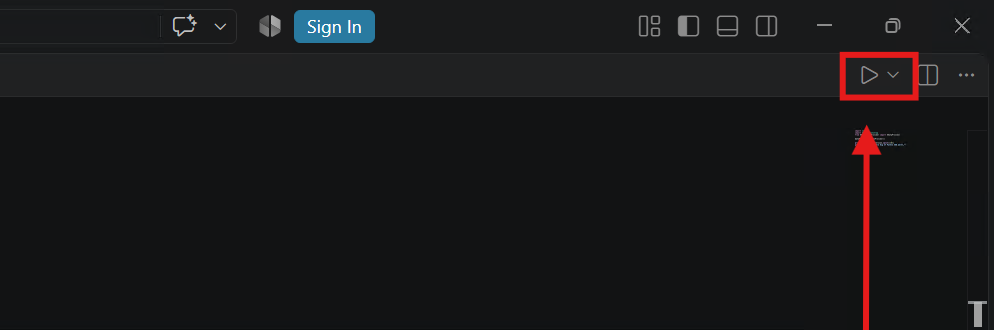 You can also run the test script by typing
 python test_setup.pyin the terminal.
Do you see the word "Success!" appear in the terminal? Then your computer is ready to work with Python and collection data.
import osimport sys# change this path if you put the SDK somewhere elsesdkPath = r"C:\DDigit-Python-SDK\dotnet"# add the SDK folder to the Python search pathsys.path.insert(0, sdkPath)# load the .NET runtime with the configuration from the SDKfrom pythonnet import loadload("coreclr", entry_dll=os.path.join(sdkPath, "DDigit.PythonHost.dll"))# load the Double Dig IT DataProviderimport clrclr.AddReference(os.path.join(sdkPath, "DDigit.DataProvider.dll"))import sysimport ddigit_bootstrapfrom DDigit.DataProvider import DDataProviderdataProvider = DDataProvider()print("Python", sys.version.split()[0])print("Success! The Double Dig IT Python SDK is working.")Python 3.15.0
Success! The Double Dig IT Python SDK is working.Not working?
- I can't see the play button
-
The button only appears while a Python file is open and active. Click inside
test_setup.pyand check that the file has been saved with a name ending in.py. Is there a Restricted Mode notice at the top? Click it and choose to trust the folder. Also check that the Python extension from step 1 is installed. Or run the script from the terminal as described above. ModuleNotFoundError: No module named 'pythonnet'- Pythonnet is not yet installed for the Python version VS Code is using. Run the command from step 4 again. Then, in VS Code, press Ctrl+Shift+P > Python: Select Interpreter and choose the same Python version as in the terminal.
ModuleNotFoundError: No module named 'ddigit_bootstrap'-
Python cannot find
ddigit_bootstrap.py. Make sure it is in the same folder astest_setup.pyand that the file name is spelled exactly right. RuntimeError: Can not determine dotnet root- Python cannot find .NET. Usually the .NET 10 Runtime has not been installed yet, so go through step 3.
RuntimeError: Failed to create a .NET runtime (coreclr)-
Python cannot find .NET or the SDK. Check that the folder in
ddigit_bootstrap.pycontains the fileDDigit.DataProvider.dll. Make sure you did not accidentally create an extra folder while extracting, such asDDigit-Python-SDK\DDigit-Python-SDK. Is the path correct? Then check step 3 and restart VS Code.
Still stuck? Get in touch and include the full error message, and we will help you out.
Learning Python
Want to learn more about Python itself? The official Python tutorial is a good place to start.